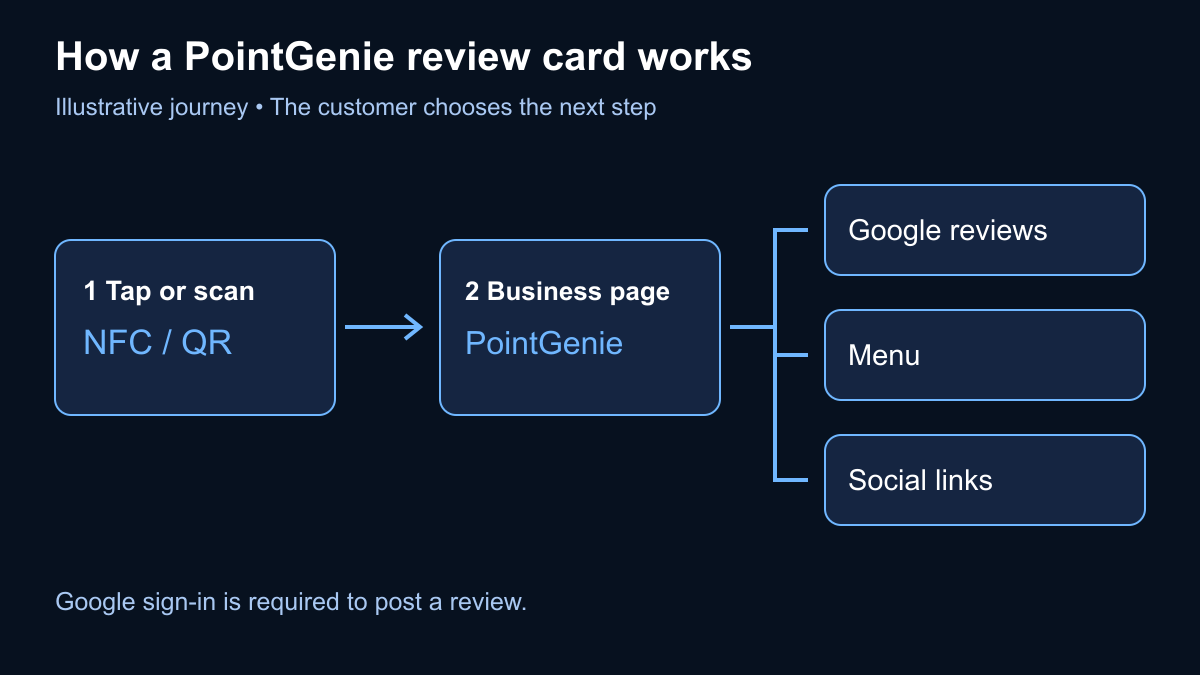
A Google review card is a physical card, tag or stand that gives customers a link to a business’s Google review page. They open it by scanning a printed QR code or holding a compatible phone near an NFC tag. Some cards open Google directly; others open a business page with a review link alongside other useful actions.
The card makes the destination easier to find. It does not write or publish a review, choose a rating or remove Google’s sign-in requirements. For a business owner, the useful question is which format customers can use comfortably and which destination you want them to reach.
What happens when a customer taps or scans?
A typical journey has four steps:
- The customer scans the QR code or brings their phone close to the NFC area.
- The phone detects a link. The customer follows the notification or camera prompt.
- The browser opens the destination: Google’s review flow or a business page with a review action.
- The customer decides whether to continue. Posting a Google review requires being signed into a Google Account.
With PointGenie, the customer can open the business’s page and then choose its Google review action. This distinction matters when planning your sign: “Tap or scan to visit our business page” describes a different journey from “Scan to open our Google review link.” Match the wording to what the code actually opens.
NFC versus a printable QR code
NFC, or near-field communication, lets a supported phone read a nearby tag. The customer holds the phone’s NFC antenna near the marked area and follows the prompt. NFC does not require aiming a camera, but support, settings and antenna position vary.
A QR code is a printed pattern containing a destination. The customer frames it with a supported camera or scanner and opens the detected link. Readability depends on print quality, contrast, size, glare and distance. A printable QR can be a sensible way to try a location before buying hardware.
A tag with both options offers a choice. It is not automatically better for every business: a clear, well-placed printed QR may suit your counter, while NFC may suit customers who prefer tapping. Test both at the intended position rather than assuming one is always faster.
Which phones work with NFC and QR?
Compatibility is a device question, not a universal promise. Apple documents background NFC tag reading on iPhone XS and later. The screen and device state matter, and the customer follows a notification to open a supported web link. On Android, check that the particular phone supports NFC and that it is enabled; follow the manufacturer’s guidance for antenna placement.
For QR, use a camera or scanner that supports QR links. Apple provides a built-in Camera and Code Scanner workflow on supported devices. Keep the QR option visible for customers who cannot or prefer not to tap. The business page needs an internet connection even though detecting the tag or printed code does not itself load the page.
No PointGenie app download is required to open the business page in a browser. That does not mean “no account needed” for every later action: Google requires a signed-in account to post a review.
Invite genuine feedback without filtering customers
Make the same invitation available regardless of whether someone praised the service or raised a concern. A neutral line is:
“If you’d like to share your experience, you can tap or scan here. You’re welcome to do it later.”
Do not ask for five stars, suggest what the review should say, offer a discount or gift in exchange for a review, or ask customers to show a submission screen. Do not route dissatisfied customers away from Google while sending satisfied customers to it. A separate support option can help resolve problems, but it should not become a condition for reaching the public review link.
Google’s contribution policy prohibits incentives and selective positive-review solicitation. Let the customer choose whether, when and what to write, without pressure to finish on the premises.
Set up and place a review card carefully
- Confirm the correct business and location. For a direct Google destination, obtain the review link from the relevant Google Business Profile. On a computer, Google’s current instructions use Read Reviews, then Get more reviews.
- Complete the provider’s setup. For GenieTag, follow the supplied activation instructions, create or sign into the owner account and validate the business information. Receiving the hardware does not replace activation.
- Check the destination. Open the page, test the Google review action and confirm the location name. Do not publish a test review.
- Try the actual position. Use a reachable counter or reception area, with a readable label and an unobstructed QR. Avoid glare, damaged print and surfaces that interfere with the NFC tag.
- Maintain it. Recheck after moving the card or changing links. Inspect for stickers placed over the QR and replace damaged print. Keep a readable business name or web address nearby so customers can verify the destination.
Test with an iPhone and an NFC-enabled Android phone if available. If tapping fails, check settings, positioning and the supporting surface before assuming the destination is broken. If both routes open the wrong page, check the configured link.
What PointGenie adds beyond a review link
A PointGenie business page can present configured actions such as a digital menu, offers, contact options and social links alongside access to Google reviews. Show only the options you have set up, and keep menus and offers current. A menu or offer should remain accessible without requiring a review.
Updating content on the same business page can avoid reprinting the QR that already points to it. That does not mean any printed destination can be changed: check whether your code points to a page you control or to a fixed third-party URL.
Where engagement reporting is available, treat it as interaction data. A scan is not proof of a posted review, a unique visitor, a sale or total foot traffic. Check page access and Google reviews separately; changes in both do not establish that one caused the other.
For a hospitality example, see PointGenie for restaurants and our restaurant tap-stand guide.
Free QR or an optional physical GenieTag?
PointGenie’s Free QR is digital and printable. Materials arrive by email, and you complete the separate registration and activation steps. It does not include a free physical card or stand. GenieTag is the optional physical NFC and QR product, purchased separately.
Choose based on the format you need, then check current packages, shipping and terms on the purchase page. Physical GenieTag offers are intended for eligible US and Puerto Rico orders; the current offer for the Dominican Republic is digital Free QR only.
Frequently asked questions
Can I make a Google review QR code without buying a card?
Yes. Google provides a review-link and QR workflow through Business Profile. A physical NFC product is optional. Decide whether you want a direct Google destination or a separate business page with additional actions.
Is a review card the same as a stand or plaque?
These names describe different physical formats. Check the actual product: it may use NFC, a printed QR or both. Choose a size and mounting method suited to where customers will use it.
Does tapping automatically post a Google review?
No. It opens a link. The customer still chooses the review action, signs into Google if needed and decides what to submit.
Do customers need to install an app?
They do not need a PointGenie app to open its business page in a browser. Their phone must support the chosen scan or tap method, and Google sign-in is required to publish a Google review.
Can the card guarantee more reviews or a higher rating?
No. It provides access to a destination. Customer participation, ratings and Google’s moderation remain outside the card’s control.
Choose your starting point
Want a physical NFC and QR touchpoint? Explore GenieTag packages for your business.
Prefer to begin with a printout? Get your Free QR and complete registration and activation after receiving your materials.
PointGenie is an independent product. Google does not endorse this guide or guarantee results from a review card.