A restaurant review tap stand gives guests a convenient link to a business page or Google review destination. To use one responsibly, choose a place guests can reach, keep the link working and offer the same neutral invitation to everyone. A stand supports that process; it cannot guarantee a review count, rating or ranking.
This guide covers placement, staff wording and a practical rollout for restaurants and cafés. If you are comparing the technology first, start with what a Google review card is and how NFC and QR work.
Why the point of experience matters
While guests are at your restaurant, they can see your business name, ask where a link goes and choose whether to use it. A visible sign gives them access without having to search for the correct location. That makes the end of a visit a useful place to offer an invitation, provided there is no pressure to act there and then.
Do not use a compliment as the trigger for who receives the invitation. A guest who experienced a delay should have the same access as one who praised the meal. Make help available when something goes wrong while keeping the review link equally available.
Where to place a restaurant QR or NFC stand
There is no proven best position for every restaurant. Start with a location suited to how you serve guests and check it under normal operating conditions.
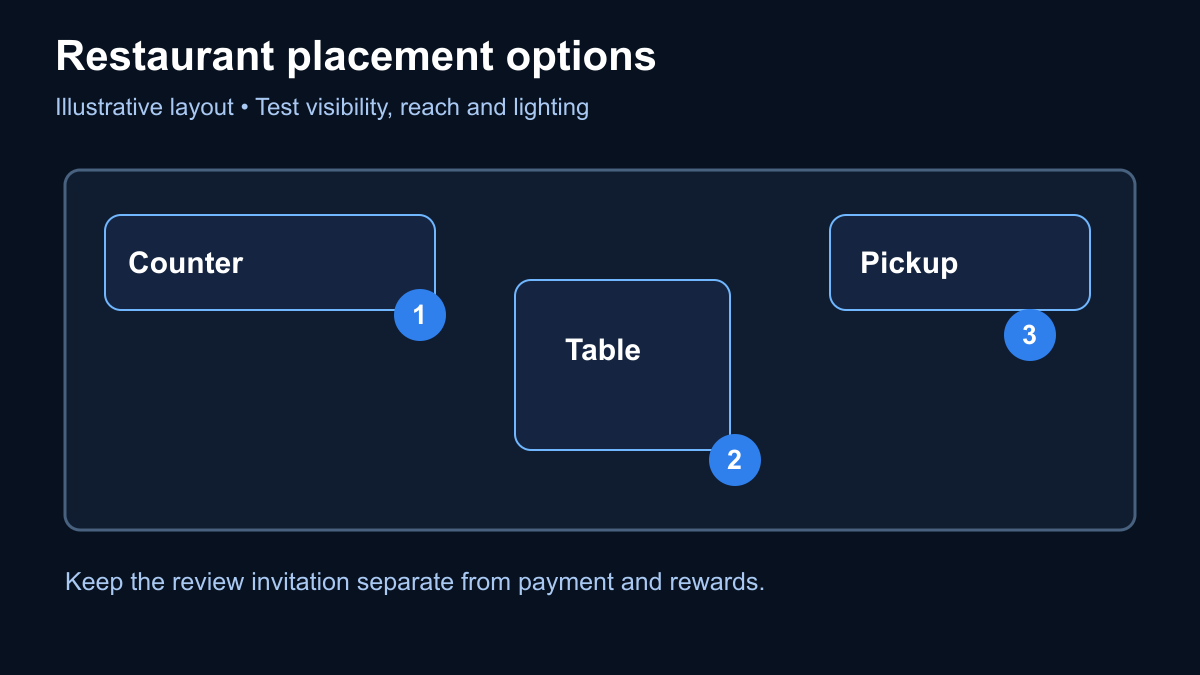
- Counter-service register: face the QR toward the guest on a stable, reachable surface. Keep it separate from the payment terminal so a review invitation cannot be mistaken for a payment step.
- Table or bill folder: give guests room to scan without reaching across dishes. Keep menu access available independently of reviewing, and avoid cluttering the table with competing instructions.
- Pickup area: a clear sign can suit takeaway service, but it should not block collection or imply that scanning is required to receive an order.
- Host station or exit: consider it when guests have a safe place to pause. Avoid a position that blocks the queue or requires returning after they have left.
Check glare during lunch and readability after the lights dim. Test the NFC tag on its actual supporting surface. A metal counter, placement near other tags or an awkward phone angle can merit a different position. Keep the QR usable as an alternative and provide another way to reach your business if scanning is not convenient.
See the existing PointGenie restaurant page for the business-page use case behind the physical touchpoint.
A neutral script your team can use
Choose a routine service moment, such as handing over the bill, and keep the invitation optional:
“If you’d like to share your experience, our Google review link is available here. You can tap or scan, now or later.”
If the stand opens a PointGenie business page first, be precise:
“This opens our business page, with our menu and a link to share your experience on Google. You’re welcome to use it whenever you like.”
Train staff to offer the same access regardless of a guest’s reaction. Do not set review quotas for staff, request a named employee mention, ask for a particular rating or wait for a guest to finish. Google’s current policy also says merchants should not pressure people to review while on the premises.
Keep menus, offers and reviews independent
On a configured PointGenie business page, a guest can find menu, social, contact and offer links alongside the Google review action. Decide what guests need, label each action clearly and remove outdated options. A café might prioritize its current menu; a restaurant might also show its active social profile and contact link.
Guests should not have to submit a review to view the menu, receive ordinary service or access an offer available to other customers. An offer displayed on the page must not be a reward for posting, changing or deleting a review. Do not add a satisfaction screen that sends only positive respondents to Google.
Common setup and placement mistakes
- Wrong location: the stand opens another branch’s Google profile. Check the address as well as the business name.
- Unfinished activation: the code opens setup rather than the customer page. Complete owner registration and activation before putting it out.
- Unclear instructions: a sign says “tap” but hides the NFC target, or shows a QR too small to scan comfortably. Test with a guest’s normal reach and lighting.
- Confusing payment and feedback: the stand looks like a checkout requirement. Label its purpose and place it separately from payment instructions.
- Review-gated menus or rewards: access is tied to posting feedback. Remove that condition.
- Unattended damage or tampering: spilled drinks, cleaning wear or a sticker over the QR can change the experience. Include a visual check in your opening routine.
Free printable QR versus physical GenieTag
You can begin by trying a digital, printable QR on a sign you already have. PointGenie’s Free QR materials arrive by email; business registration and activation are separate steps. The free digital offer does not include a physical stand.
If you want a physical NFC and QR touchpoint, GenieTag is purchased separately. You do not need to buy a tag for every table before testing a reachable position. Current physical offers are for eligible US and Puerto Rico orders; in the Dominican Republic, begin with digital Free QR only. Review current packages and shipping at checkout.
A practical restaurant implementation checklist
- Confirm the correct Google Business Profile and location-specific review link.
- Complete the business-page setup and activation; check menu and social links on a phone.
- Choose one initial position and write down why it suits your service flow.
- Test QR and, if supplied, NFC with available compatible phones. Check guest Wi-Fi or mobile connectivity without posting a test review.
- Label the destination honestly: direct Google link or business page first.
- Show the team the neutral invitation and make clear that it applies equally to all guests.
- Keep menu, service, discounts and review participation independent.
- Inspect the sign at opening and recheck links after changing the page.
- Choose a weekly owner check for page access, broken links and public feedback.
- Adjust one placement detail at a time and record the change. Treat results as observations, not proof of causation.
What to measure without confusing scans and reviews
Where available, review the page’s scan or engagement reporting alongside new reviews visible on Google. Keep those numbers separate. A guest may open the menu without reviewing; another may review later through a different route. Several interactions can come from one person.
If a location has little recorded activity, check that the reporting is available and functioning before drawing a conclusion about placement. Then inspect visibility, connectivity and the destination. A rise or fall in reviews alone does not identify which stand, staff interaction or service change caused it.
Read feedback for issues you can address. Acknowledge a specific concern professionally, protect the reviewer’s privacy and offer a support route where appropriate. Do not offer compensation in exchange for changing or removing a review.
Frequently asked questions
Where should a restaurant place a review stand?
Try a reachable counter or a clear position near the bill, depending on service style. Test visibility, lighting and guest access. There is no single placement guaranteed to work for every restaurant.
What should staff say?
Offer an optional invitation to share an experience, explain what the link opens and allow guests to do it later. Do not condition the invitation on satisfaction or ask for a particular rating.
Can we offer a free dessert for an honest review?
No. Google prohibits incentives for reviews even when you do not request five stars. Keep any dessert promotion independent of posting, changing or removing a review.
How many stands do we need?
Start with a position you can test and maintain. Add touchpoints where service flow justifies them, rather than assuming every table needs one. Check current product packages before ordering.
Do guests need an app or a Google account?
A PointGenie business page opens in a browser without a PointGenie app download. Guests must be signed into a Google Account to post a Google review, and their phone must support the selected tap or scan method.
Put the plan into practice
Ready for a physical NFC and QR touchpoint? Explore GenieTag packages for your restaurant.
Prefer to test a printed sign first? Get your Free QR, then complete registration and activation.
PointGenie is independent of Google. Customer participation and Google’s moderation determine which reviews appear; no review quantity, rating or business outcome is guaranteed.